
Best Ways to Burn CD / DVD on Windows 10
Optical media such as CD and DVD were popular until a decade ago when USB flash drives arrived on the portable storage media scene. However, CDs and DVDs are still used for their convenience, low cost, and utility as short-term backup media that can be easily replaced and carried around. This blog post covers the best ways to burn a CD / DVD on a Windows 10 system.
However, before we go further, there are a few essential things to know about optical media, like their types, supported file formats, compatibility with devices, etc.
What do you need to know before burning a CD or DVD?
Different devices can read CDs and DVDs written with different file formats based on compatibility. For example, you can burn CDs in mainly two types — audio CD and data CD. However, be aware that your standard music player can play only an audio CD or music CD, but it cannot play a data CD. So, you need to burn an “audio CD” if you wish to play them on an audio player like a car CD player, portable CD player, etc.
On the other hand, you can play a data CD written with MP3, WAV, or any other file type on a computer system, like a desktop or laptop PC. Similarly, you can burn videos on a CD and create a Video Compact Disc or VCD containing video files in MPEG-1 format and play it on any VCD player, DVD player, or computer with CD-ROM. For burning videos on a DVD, you need to use MPEG2 file format, which is generally compatible with all DVD players.
Also, different tools offer to burn videos, audio, photos, and other data in various file formats. So, you need to pick the optimal tool based on the file types you wish to burn in a given format.
Windows 10 offers a built-in utility for writing files on a CD or DVD, which is among the best CD/DVD burning utility. However, you can also use third-party software like DVDFab, ImgBurn, or Ashampoo DVD Burner.
Ways to burn a CD or DVD on Windows 10
Windows offers two options for writing files on an optical disc, as follows:
Option 1: Like a USB flash drive
Using this option in Windows, you can burn files on a CD or DVD like you copy data on a USB flash drive, i.e., you can write and erase the data without necessarily finalizing or mastering the disc. This option is suitable for burning CD-RW or DVR-RW — rewritable optical media that allows multiple write-erase cycles, typically about 1000 times. Notably, you can also use the USB flash drive option to temporarily write files on a standard CD-R or DVD-R and even erase them; however, unlike a rewritable disc, the space in a standard disc (CD-R or DVD-R) will not be cleared even after you delete the files.
Option 2: Like a CD/DVD player
This is the traditional method for burning a CD or DVD on Windows. In this method, you use the Windows utility to copy the files on an optical disc and then write them over the media by burning them. In this method, the files are permanently written on the disc and cannot be deleted or erased. Discs burned using the CD/DVD player option have higher compatibility with Windows versions and disc players.
Steps to burn a CD or DVD on Windows 10 system
Start the Windows system and insert a blank disc in the optical disc drive. The system will pop up the “Burn a Disc” message with options to write the disc like a USB or CD/DVD.
Follow these steps to burn the disc like a USB drive:
- Copy the files to the optical drive shown in the File Explorer window.
- Once you have copied all the data, eject the optical drive.
- Windows will copy & burn the files on the CD or DVD and eject it.
If you wish to burn the disc like a CD/DVD player, follow these steps:
- Copy the files to the optical drive displayed in the File Explorer.
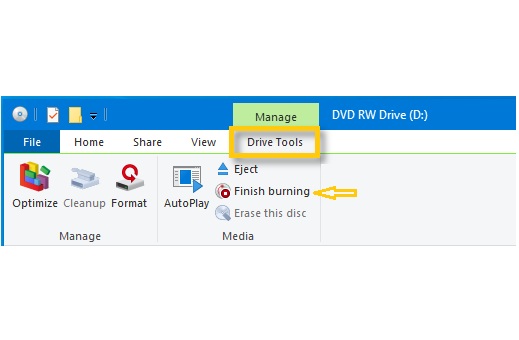
- After copying the files, click “Drive Tools” in the main menu.
- Click the “Finish burning” option in the dropdown.
A Burn to Disc dialog box will appear.
4. Enter the disc title and select a recording speed. Click Next.
A progress bar will appear, displaying the burning progress and estimated completion time.
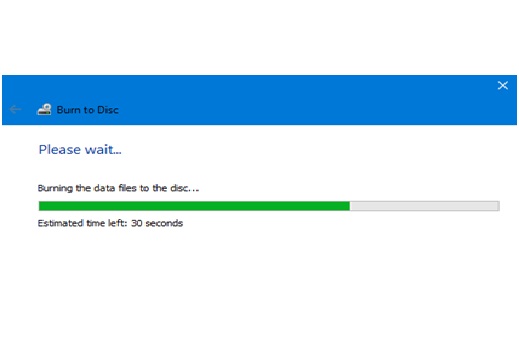
The system will eject the disc after writing the files on it.
5. Click Finish to complete the process.
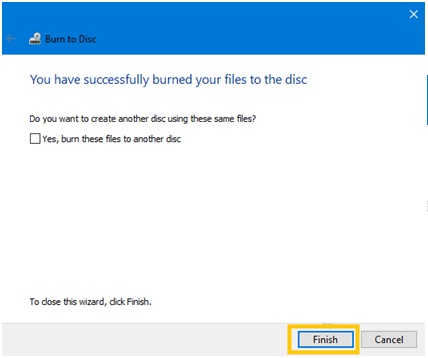
You have successfully burned the CD or DVD on Windows 10.
Is the data written on an optical disc safe?
Although optical discs like CDs and DVDs are cheaper than USB sticks, they are prone to scratches and chemical breakdown or oxidation of the storage layer. You shouldn’t be surprised to find a CD or DVD turning unreadable after a few months or with a few light scratches.
Deleted: The situation can result in data loss, including your precious photos, music, videos, or even your project data. If you’re facing a similar issue, try using windows data recovery software that can read scratched or otherwise unreadable optical discs. Software such as Stellar Data Recovery could be your best chance to rescue the priceless files.Although optical discs like CDs and DVDs are cheaper than USB sticks, they are prone to scratches and chemical breakdown or oxidation of the storage layer.