After looking over my chart on creating a page on Facebook, you have decided to put my advice into practice and open your first page on the famous social network founded by Mark Zuckerberg. Everything went well; the operation turned out to be easier than expected. Now, however, you would like to add a friend of yours to the page who can help you publish new content, moderate comments, and reply to private messages, entrusting him with the role of administrator. From this article, you will know how to add admin in facebook page smoothly. So, let’s get started.
Getting Started on how to add admin in facebook page instantly
If you dedicate a few minutes of your free time to me, I can explain how to add an administrator to the Facebook page both from a computer and from a smartphone and tablet. Because yes, you can succeed in your intent both by accessing the social network through your computer’s browser and by downloading one of the Facebook applications on your mobile device. In addition to providing you with all the information necessary to appoint one or more administrators, then, I will show you what other page manager roles are that you can consider.
Procedure for adding admin into your Facebook page
Before I leave the facts of this guide and explain how to add a Facebook page admin, let me show you what other page manager characters you can consider.
Administrator: This is the highest role a Page Manager user can assume. In addition to creating content and ads, managing comments and messages, viewing Insights data, and editing the page, he can also appoint other administrators and work roles. It is best to select this role to trusted people as an administrator can also delete the page or change its name.
Editor: Can create content, manage comments and messages, view Insights data, and contain some page settings, e.g., B. changing the profile picture and cover, changing the order of the tabs, and much more. It broadcast live from a mobile device.
Moderator: Can manage comments, delete comments, post messages on the page name, create ads, and view Insights data, but cannot create and publish content.
Advertiser: Can create ads, view Insights data, and see who created content on the page.
Analyst: has the same functions as the advertiser but cannot create ads.
Live Video Contributor: Has a single function to stream live video from a mobile device.
Add a Facebook page administrator.
The person who created a new Facebook page automatically becomes its administrator and can manage all aspects of it. Among the features available to the administrator. There is also the possibility to add people, work roles.. Then add an administrator to the Facebook page: let’s see together how.
From computer
To add an administrator to the Facebook page from a computer, connect to Facebook and log in to your summary, then click on the down arrow icon at the top right and assign the page of your attention from the menu that appears.
- Alternatively, you can write the name of your page in the Search field at the top. If you have added the page to quick links. You can access it from the Facebook. Then tap on the Home by clicking on the page name under the Quick Links item in the sidebar on the left.
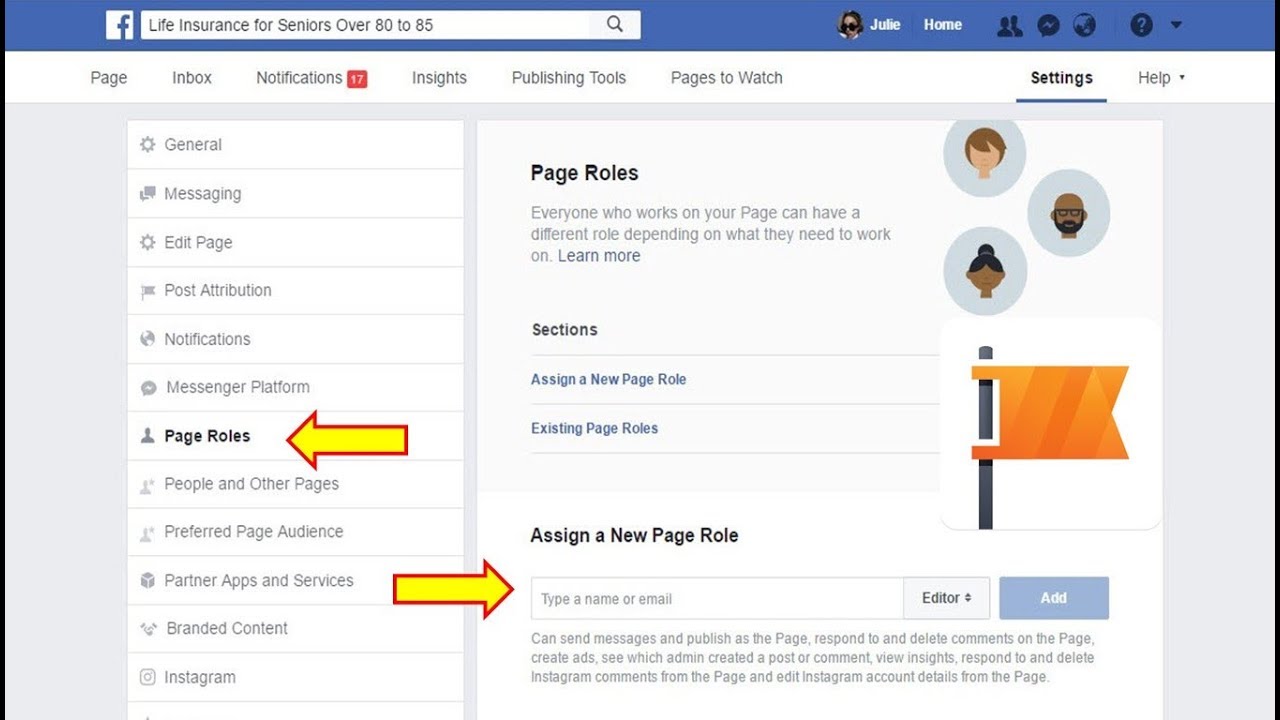
- Now, click on the Settings item (top) and select the Visible Page Roles option in the menu on the left. In the new page opens, locate the item Assign a unique role in the page, and through the drop-down menu where the Editor option appears, select the item Administrator.
- To add a new administrator, enter their name or email in the Type a name or email field. Then select the user from the menu that appears, then click on the Add button. Enter your account password in the Password field, and presses the Send button.
The person invited to fill the page administrator role will be notified. Then accept the invitation by clicking on the Accept button.
From Mobile
You can also add an administrator to a page using a smartphone and tablet. To do this, you need to download the Facebook application for Android, iOS, or Windows 10 Mobile devices.
After downloading the application from your device’s store, launch Facebook by tapping the appropriate icon on the home screen. Then logging into your account. Then press the three horizontal lines icon, then press the page you want to add an admin on. If you don’t see the name of the page, tap Show All. Then tap the three icon Dots (top right)) and select the Change Settings option.
Final verdict
Adding an admin to a Facebook page is not so hard. But some people don’t know how to adding admin on a Facebook page. I hope you know now how to add admin in facebook page. If you have any asks let us know via email or comment us on the blog.