

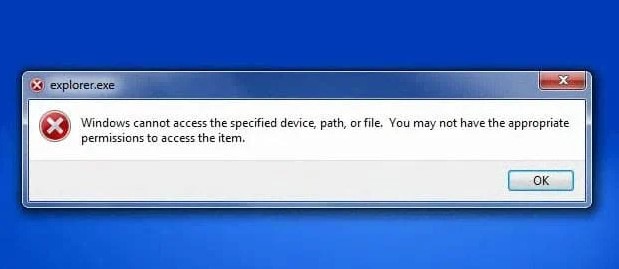
Windows 10 is an extremely popular model of Microsoft to date and it is the advanced version of operating systems of Windows as well. Although, Windows are eager to facilitate the users still their operating system comes with errors and bugs. One of them is “Windows cannot access the specified device path or file”.
These errors and bugs pop up from anywhere and anytime and these need your attention. The error message “Windows cannot access the specified device path or file” would come in your way when have to open, edit or delete the file. If you are worried just due to, the issue then, we are here to help you. In this article, we presented easy, fast, and best possible remedies.
Common causes of the “Windows cannot access the specified device path or file”
There is no exact cause for this error just like many other Windows 10’s errors. However, users all over the world have pieced together some major and possible factors. These factors may cause the error you are looking to solve. Here are the causes reported by thousands of users:
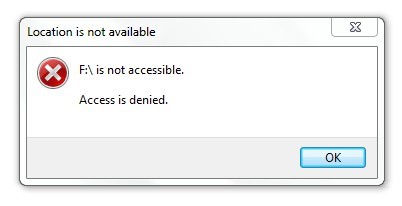 An antivirus application is blocking your access. As for as Windows errors are concerned, the only thing which came into mind is antivirus applications. These applications are notorious for these kinds of errors. You can find a way to secure your system from any harm caused by antivirus software.
- The file is on a non-accessible external location. The second reason for the “Windows cannot access the specified device file” error would be the files you have stored in an unfeasible This external location would be any network and there is no connection between the hard drive and PC.
- You don’t have the right authorization to access the file. You may have kept the required authorization to disallow to open or edit the application. This would cause this error, and you may do this intentionally or unintentionally.
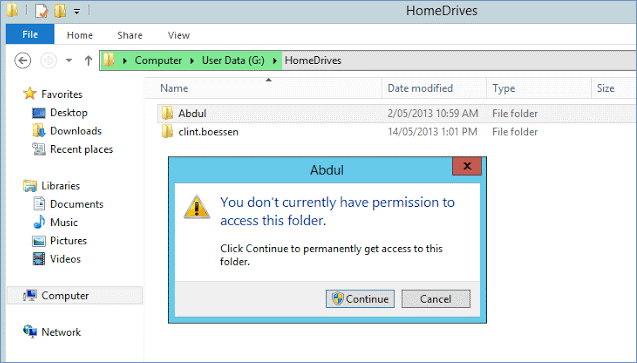
- The file location is unfeasible or doesn’t exist. You have to find the file that is not present in the operating system.
- The file has been edited or deleted by malware. When your system contained malware infections, then, you have to edit or delete the file.
The above-mentioned causes are those reported by the user community. It would possible that there will be an entirely different reason for this error. However, the methods to solve the problems presented in the next section would remain the same. You can try these fixes one by one.
Possible fixes for “Windows cannot access the specified device path or file”
Method No. 1 – You should permit a folder in windows
It would be possible that you are lacking access to the files just because it did not permit a folder. It could be to keep the files away from others if your system is in the public domain. Nonetheless, it is a great security measure. You can contact the administrator then.
When any issue or error shows in your operating system then, do solve it by themselves. There are some steps in this regard, follow them to tackle the issue easily:
- Hit the right-click on the complicated file, then do press on the Properties.
- Use the tab symbols at the top side of the window, switch to the Security tab.
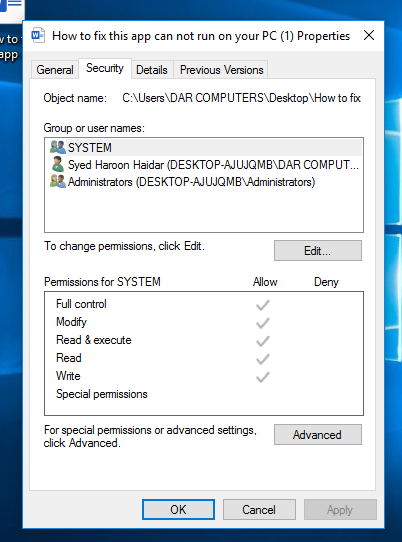
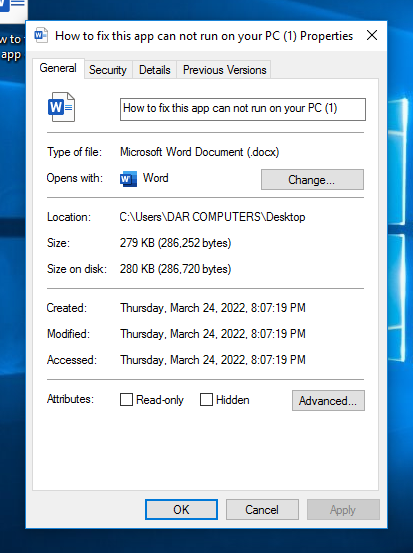
- Do press your account icon present under user names. In this way, it would have shown the permissions that you contain.
- To modify authorization do press the Edit icon.
- Do make sure that you remove all the checks from the list of the Deny column.
- Hit the click on the “OK icon” and check your file will be edited or not.
Method No. 2 – You must assess the file location
You may get the issue notification “Windows cannot access the specified path or file” if you are using a shortcut to a file. Your created shortcut might lead to a nonexistent location.
So, first of all, where is your file present, check it, if it is present anywhere or not then, do follow these simple steps:
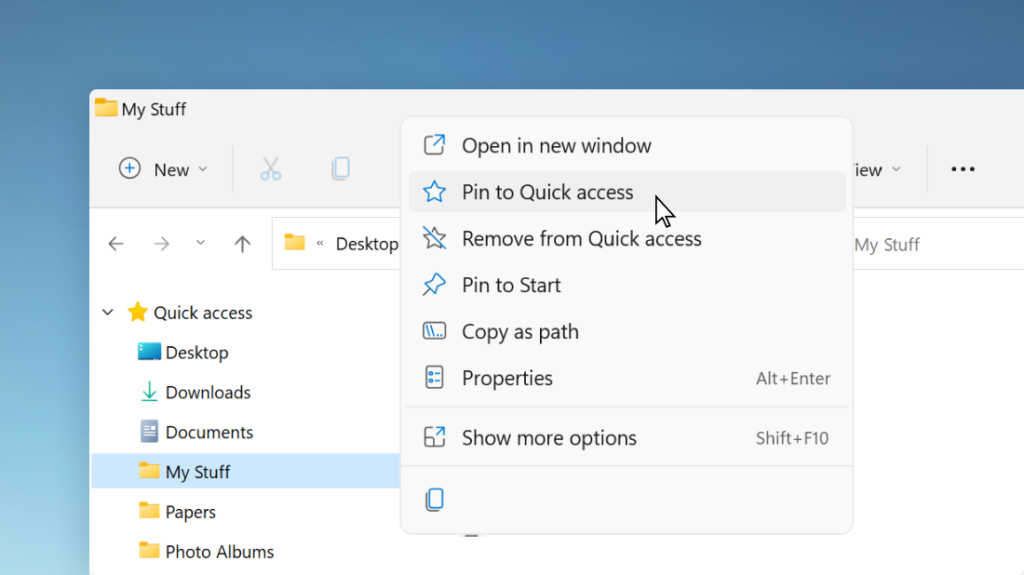
- At first, Hit the right-click on the complicated file, then do press on the Properties.
- After this, do make sure that you’re on the General tab. You can provide details about a file and folder there.
- Then, do check the presence of the file.
- Now, choose the location and hit the right-click on the text with your mouse pointer. Select the “Copy” option from the menu list.
- Then, find and open the File Explorer by using the icon that existed in the taskbar.
- Press the header portion and place the location text you copied in the above-mentioned Step no. 4. Do press the “Ctrl + P” Then move on to the Enter key and move towards the place where your file is present.
- In the end, recheck that you can find out the required file in that location or not. If you don’t find the file, then understand that the file might be moved or may be deleted.
Method No. 3 – Recreate the easy shortcut to the file would help you remove the error
When you change the place of a shortcut, it does not automatically become up to date. So, you might try to develop a simple shortcut that no longer exists in your system. In this case, you must reform the shortcut.
If you are going to re-create a short then follow the steps below:
- First of all, you have to press on any place on the display of your PC or computer, then select New → Shortcut.
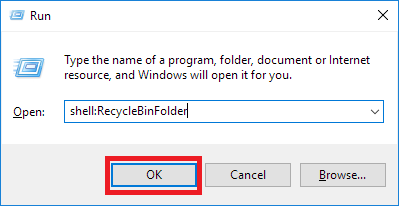
- After doing this, press the Browse icon and check the location of your file or application. Then, move towards Next.
- Now, type the required name for this shortcut. Then do press Finish.
- In the end, you should have contained the functional shortcut developed on your Desktop’s display.
Method No. 4 – You should Unblock the file to remove the error
Another reason for the “Windows cannot access the specified path windows 10” would be that your Windows 10 would block the file or application to protect your Pc or computer. The file doesn’t need to be malicious or toxic to the system. Your system has to run the application or files into false positives and block the files that must be wanted to access or edit.
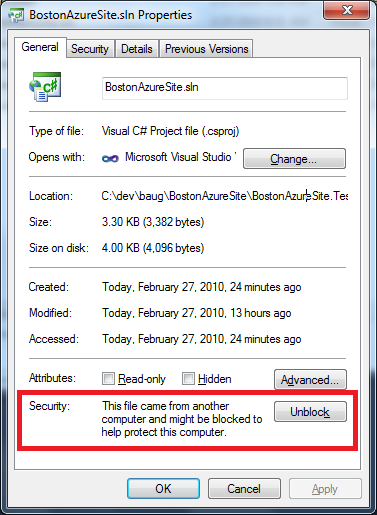
In this case, must follow these steps mentioned below:
- At first, Hit the right-click on the complicated file, then do press on the Properties.
- After this, do make sure that you’re on the General tab. You can provide details about a file and folder there.
- Now, check can you watch the text “This file came from another computer and might be blocked to help protect this computer.” Then check the Security portion.
- In the end, hit the click on the “OK icon” and check your file will be edited or not.
Method No. 5 – You should temporarily inactivate your outsourced antivirus
As discussed earlier, an antivirus application or system software may be a cause of windows being unable to access the special issue. Several Windows 10 users have reported third-party antivirus applications as a cause for the error.
So, must consider this option, and follow the steps below to disable the antivirus software.
- Firstly, go to the Task Manager through these mentioned steps:
- Hit the Right-click on the taskbar and select the Task Manager.
- Do press the Ctrl + Alt + Del and wait for the security options.
- If the Task Manager developed in the compact display, click on the More details.
- Thirdly, switch to the Startup tab. Here, you can see all the files.
- Fourthly, choose your outsourced antivirus file, then press the Disable icon. The application is changed to disabled.
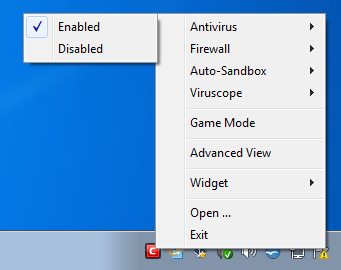
- Lastly, repeat this for every outsourced antivirus software installed on the Pc, after doing so, restart the PC or computer.
Final Verdict
Windows 7 or 10 or any other update of the window, one thing is common, bugs and error. You must have succeeded in fixing the problem “Windows cannot access the specified path windows 7 or 10”. If you still did not succeed then try to learn more hacks or fixes.
FAQs
How do I fix the issue “Windows Cannot access the specified path”?
- Method no.1: Assess the authorization of the file or folder.
- Method no. 2: Check the file location.
- Method no. 3: The file has not been moved or deleted, do sure.
- Method no. 4: Reform the shortcut way to assess for corruption.
- Method no. 5: Unblock the file.
How could we fix a file issue?
- Method no. 1. Do restore the System.
- Method no. 2. Check the Disk.
- Method no. 3. Then use the System File Checker & DISM.
- Method no. 4. Then go to Malware/Virus Scan of Your PC System.
- Method no. 5. Reset Windows 10 Theme to Default.
- Method no. 6. Change Sound Scheme of Your PC System.
How do I permit a folder in Windows 10?
You could choose and allow a folder by adopting these steps:
- Give access to the Properties.
- Then choose the Security tab icon.
- Do press the Edit icon.
- In the user’s name portion, choose the user’s name.
- Then move on towards the Permissions portion, use the checkboxes to choose the proper authorization steps.
- Go to the “Apply” icon.
- Click on the “OK”.


